Configure and enable RBAC for Unravel Snowflake
Overview
Role-based access control (RBAC) is a security model that manages user access to Unravel resources based on assigned roles. RBAC in Unravel for Snowflake operates at two levels: data-level access, which governs access to underlying data, and graphical user interface (GUI) component-level access, which controls the visibility of specific menus and menu items.
By configuring RBAC, administrators can define roles with specific permissions, map those roles to individual users, and enforce granular access controls. This ensures that users see only the data and GUI components they're authorized to access.
Backend Roles
Admin users have the privileges to create users and roles and to establish mappings between them.
Create a user
Sign in to Unravel using admin credentials.
Select Config > Users. You're directed to the os_manager_role_users screen. For more information, see the OpenSearch documentation.
Select Create internal user.
Enter a username and password.
Select Create User.
Create a role
Sign in to the console as an admin user.
Select Config > Roles. You're redirected to the os_manager_roles screen.
Select Create Role.
Enter a name for the role.
Configure index permissions:
Index names or patterns: Specify the indexes or index patterns the role can access.
Index Permissions: Define the permissions the role has on the specified indexes. For more information, see the OpenSearch documentation.
Add Document level permissions: Use this option to grant the role access to a filtered subset of documents within the index.
You can add multiple sets of index permissions.
Select Create.
Map users to roles
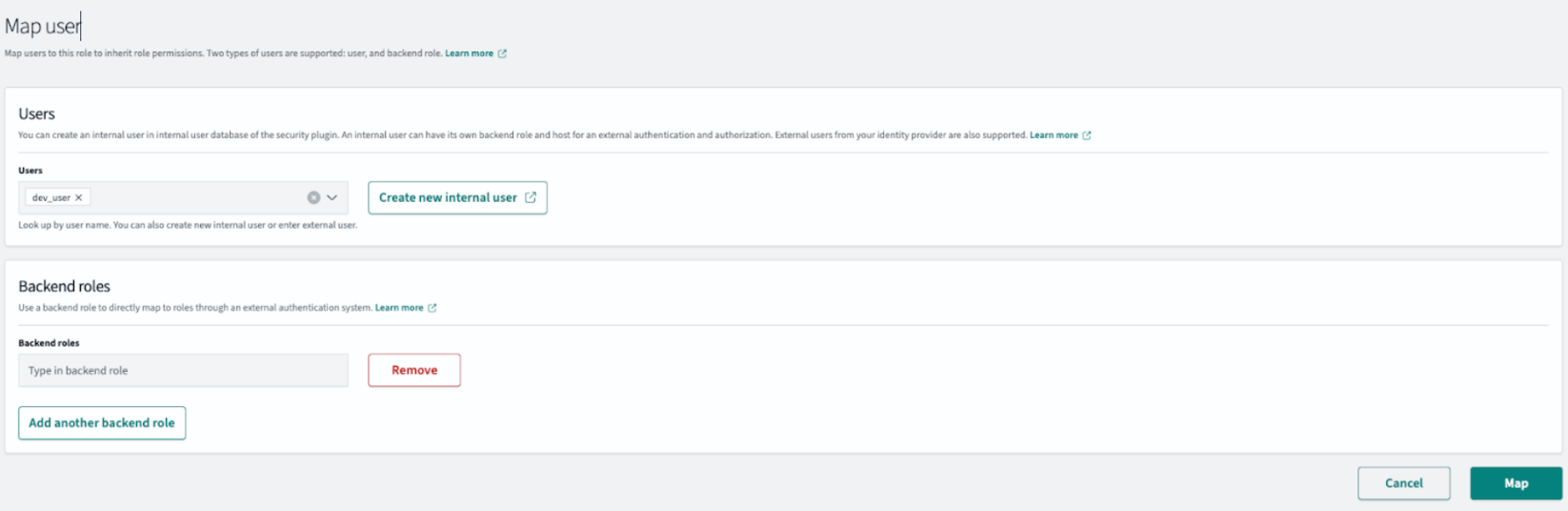
Sign in to the console as an admin user.
Select Config > Roles. You're redirected to the os_manager_roles screen.
Select the role you want to map.
Select Mapped user.
Select Managing Mapping.
In the Users tab, select the user.
Select Map.
Sample backend role configuration
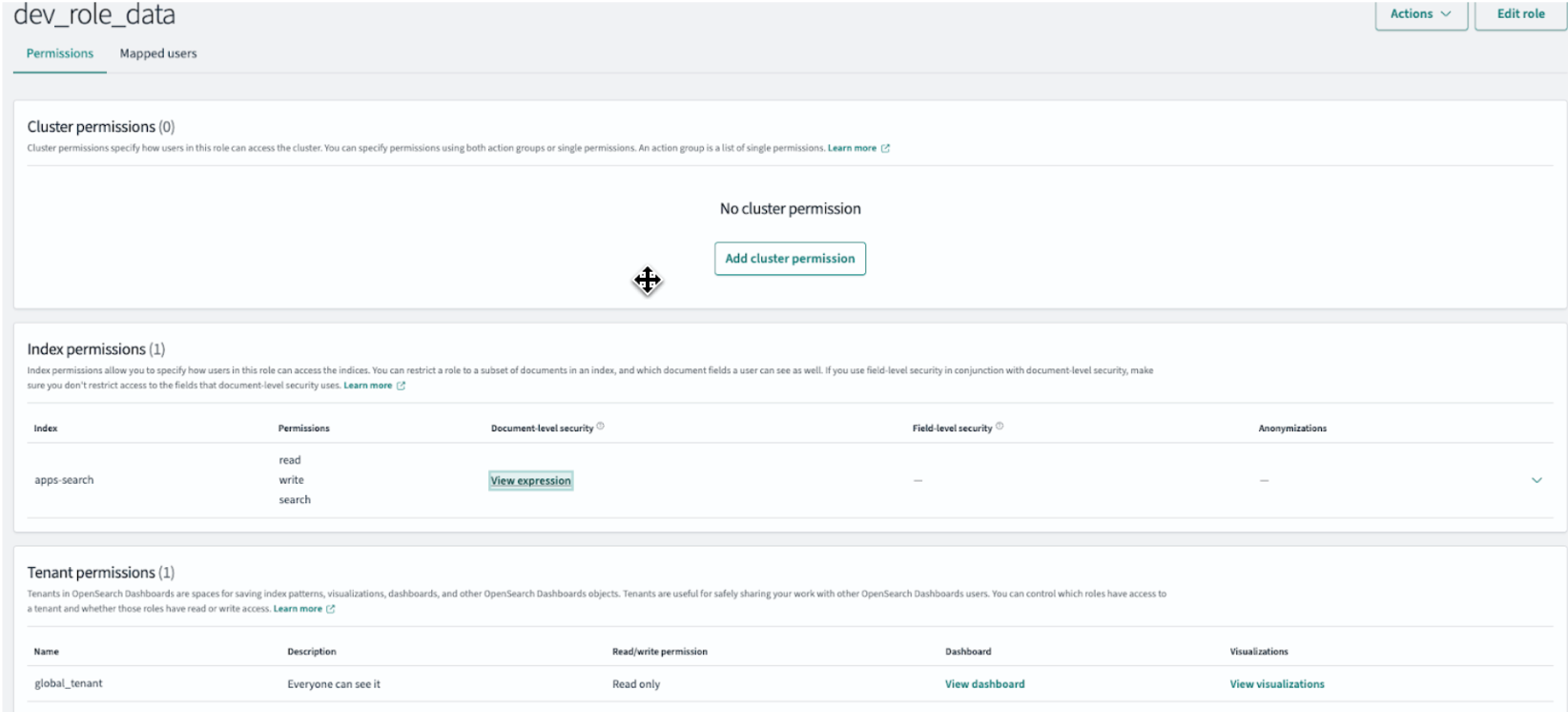
The following example shows a sample role for backend data access. The dev_role_data role provides access to one specific account using a Document-Level Security (DLS) query.
{
"bool": {
"must": {
"term": {
"acct_id":
"SECURE_SHARE_BC"
}
}
}
}
To provide access to a specific warehouse within the same account, use the following DLS query:
{
"bool": {
"must": [
{
"term": {
"compute_name": "COMPUTE_WH"
}
},
{
"term": {
"acct_id": "SECURE_SHARE_BC"
}
}
]
}
}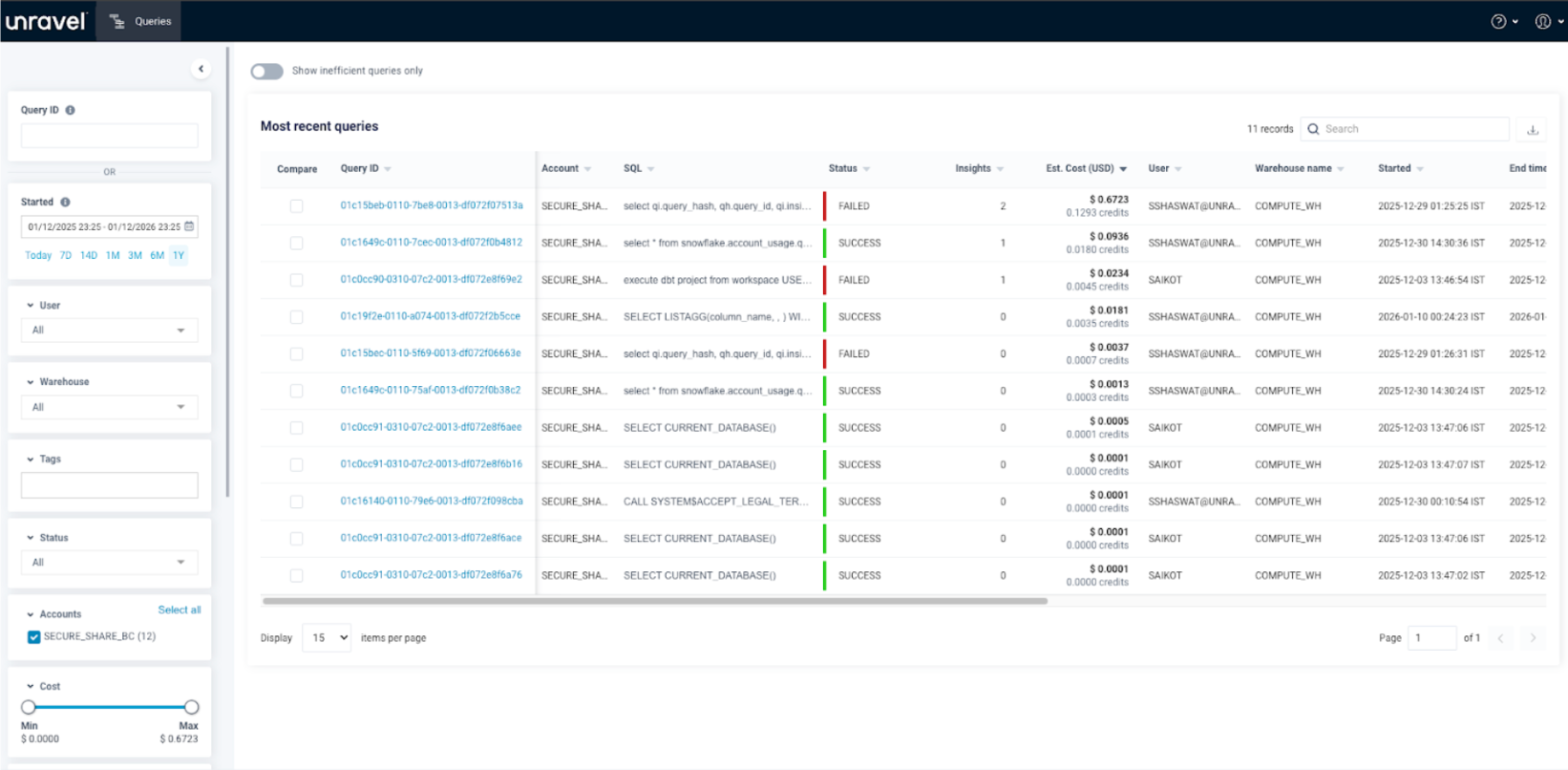
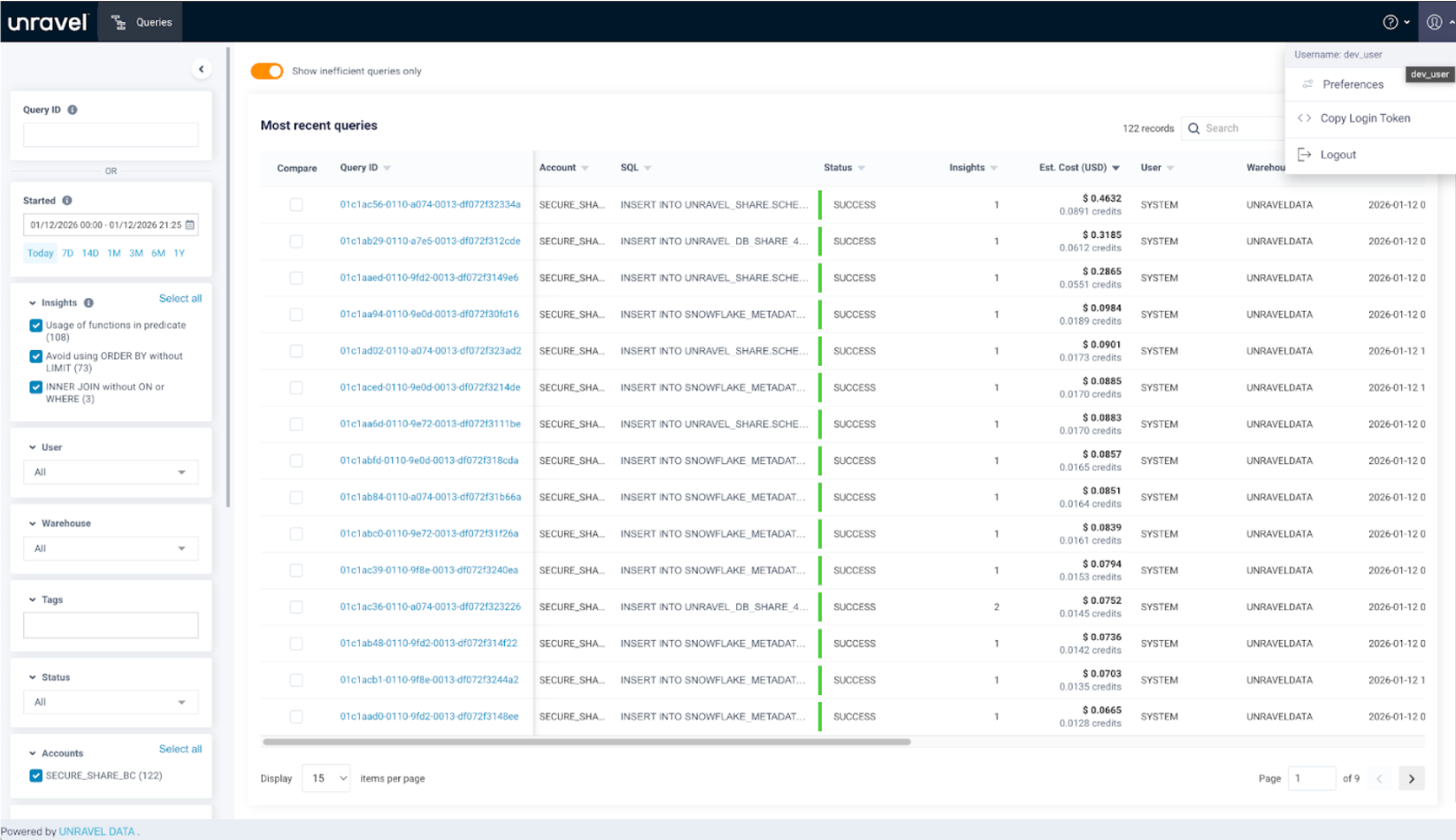
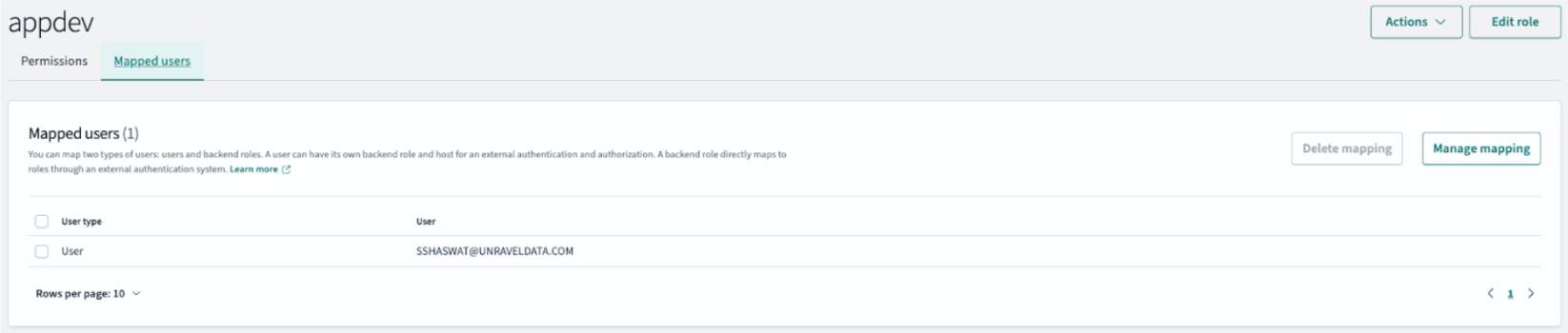
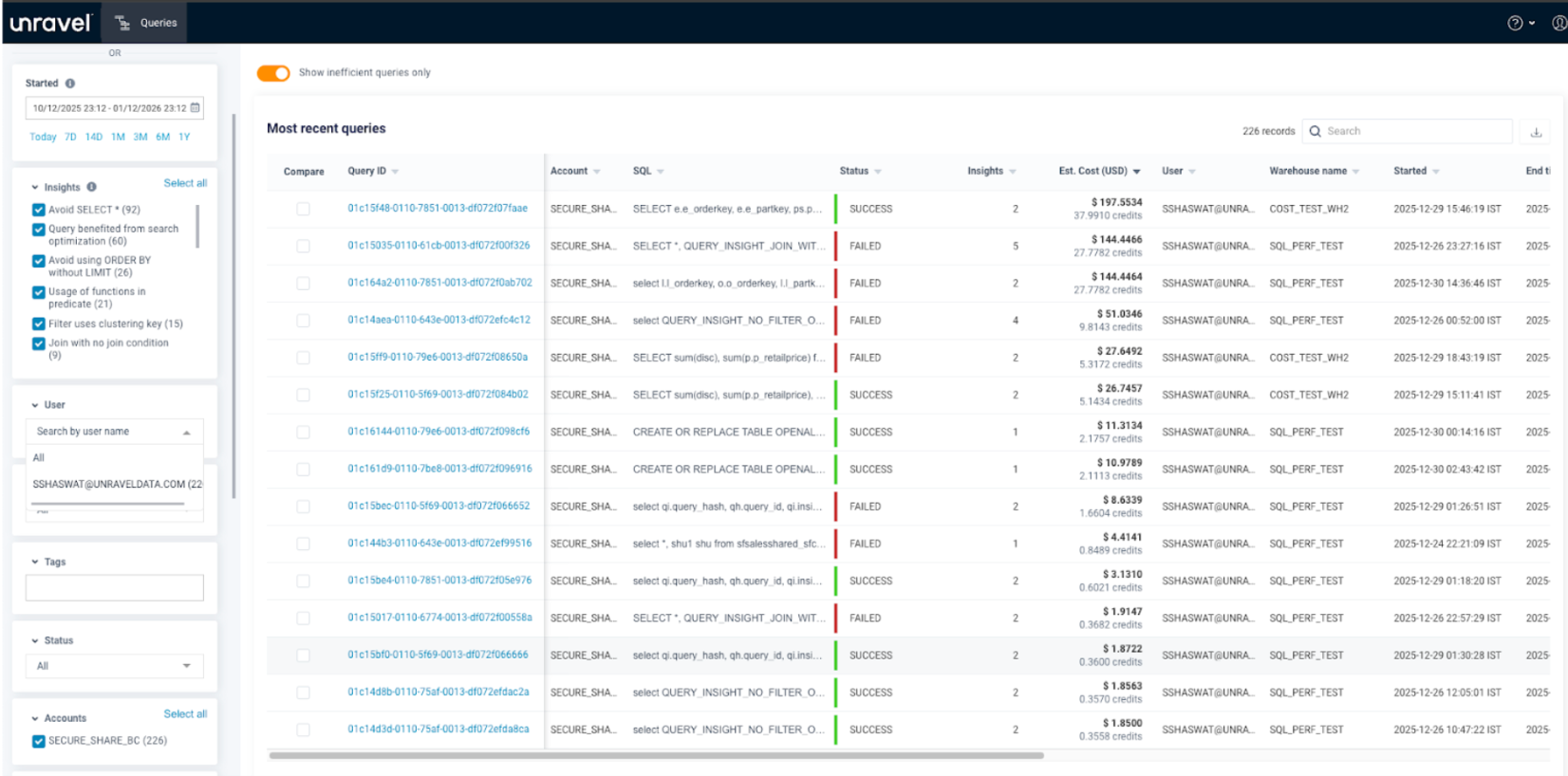
Mapping to existing Out-of-the-box roles. Unravel provides a default appdev role, in which the user can see his own queries, warehouses, tables.
Here the user can see their own queries on the Query page.
Configure GUI components
All actions executed within the GUI are configurable and stored within the sdm_menu_t1-snapshot index in OpenSearch. Admin users have access to all GUI components and must grant individual menu and menu-item access to non-admin users.
Grant menu and menu-item access
Sign in as an admin user.
Query all available menu items in the sdm_menu_* index by running:
GET sdm_menu_t1-snapshot/_search?size=100
{
"query":
{
"match_all": {}
}
}
In the output, identify the required menus to grant to a specific user. The sample output shows menu items with properties such as object_id, object_name, action_url, and component_name.
{
"took": 1,
"timed_out": false,
"_shards": {
"total": 2,
"successful": 2,
"skipped": 0,
"failed": 0
},
"hits":
{
"total":
{
"value": 73,
"relation": "eq"
},
"max_score": 1,
"hits": [
  {
 "_index":
 "sdm_menu_t1-snapshot",
 "_id": "103",
 "_score": 1,
 "_source": {
  "tenant_id": "1",
  "is_valid": true,
  "object_type": "INTERNAL",
  "object_id": "103",
  "object_name": "Queries",
  "parent_object_id": "0",
  "action_url": "/query",
  "icon": "icon-jobs",
  "tool_tip": "Queries Menu",
  "order": 3,
  "is_visible": true,
  "module": "NGUI",
  "component_name": "SNOWFLAKE_VIEW"
   }
  },
   {
     "_index": "sdm_menu_t1-snapshot",
     "_id": "103_01",
     "_score": 1,
     "_source": {
     "tenant_id": "1",
     "is_valid": true,
     "object_type": "INTERNAL",
     "object_id": "103_01",
     "object_name": "Query list",
     "parent_object_id": "103",
     "action_url": "/query/list",
     "icon": "icon-jobs",
     "tool_tip": "Query list Menu",
     "order": 1,
     "is_visible": true,
     "module": "NGUI",
     "component_name": "SNOWFLAKE_QUERY_LIST"
   }
 },
Create a role (for example, dev_role_gui) and configure it with read, write, and search access to the sdm_menu_t1-snapshot index.
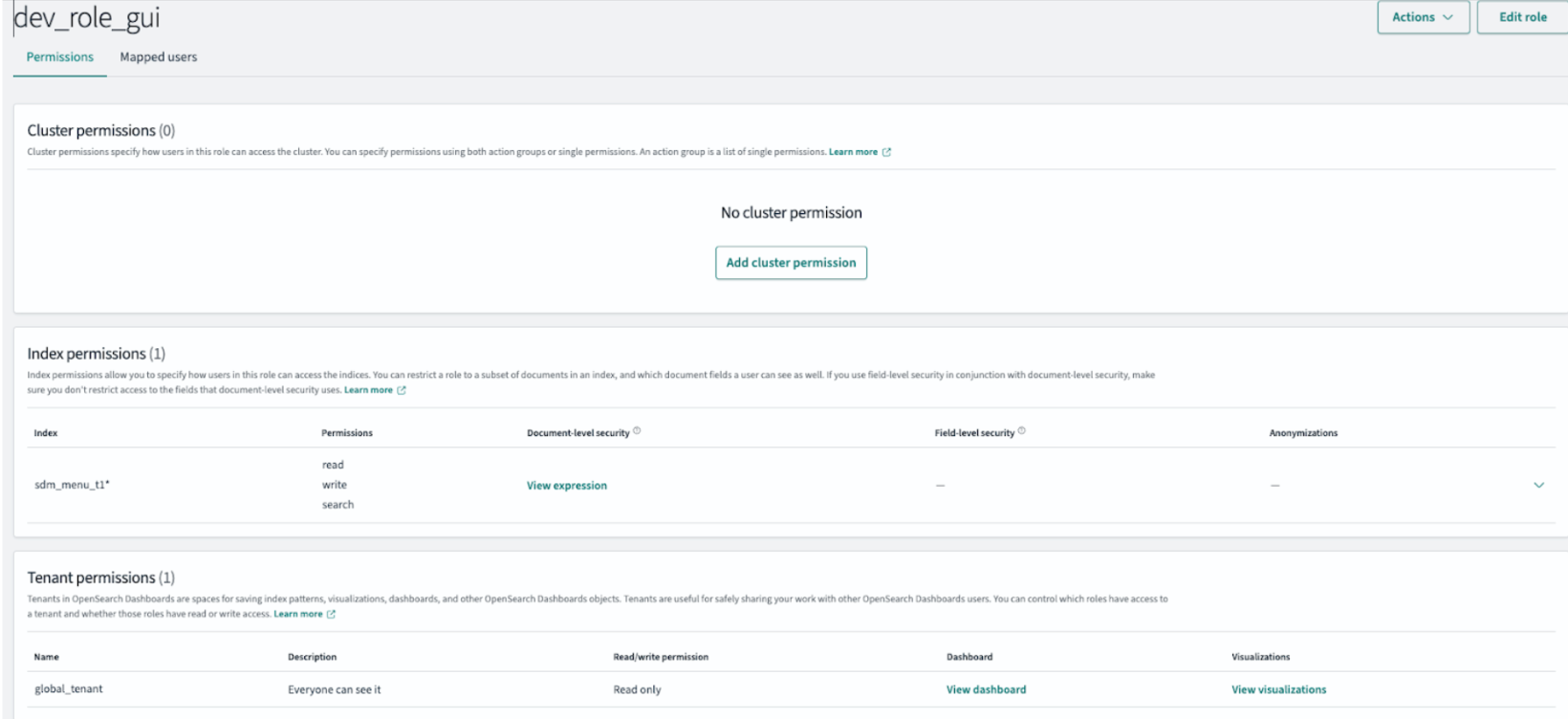
Apply a Document-Level Security (DLS) query to the role. The following example grants access to all query-related pages:
{
"bool": {
"should": [
{
"match": {
"object_id": "102"
}
},
{
"match": {
"object_id": "101_01"
}
},
{
"match": {
"object_id": "101_02"
}
}
]
}
}
Grant the role to the user (for example, dev_user_gui).
Result
When the user signs in to the Unravel GUI, they see only the pages and menu actions they're authorized to access.
For example, a user with the GUI role that grants access to query-related pages can see only the Query page and related menu actions such as Query list and Query details.