Preparing BigQuery Secure Sharing with Unravel
Overview
This document outlines the process for securely sharing a one-time, read-only snapshot of your BigQuery environment with Unravel to perform a health check on the cost and performance of your BigQuery usage. It provides step-by-step instructions to extract your metadata and billing data and securely bridge it to Unravel’s SaaS environment by using Google Cloud Analytics Hub clean rooms.
For more information about Analytics Hub and clean rooms, see the Analytics Hub documentation.
What is BigQuery health check?
The BigQuery health check is a comprehensive, three-stage diagnostic engagement designed to optimize your data platform: collection, hydration, and analysis and reporting. Unlike generic cloud observability tools that only monitor infrastructure, Unravel uses workload intelligence to understand platform-native behaviors like BigQuery execution graphs. After your data is collected and hydrated into the Unravel BigQuery Lab Instance, Unravel's engine performs deep analysis to pinpoint the root causes of inefficiencies. Utilizing a performance–cost correlation engine, it delivers recommendations for SQL query tuning, storage efficiency, and BigQuery pricing plans to make your workloads faster and more cost-efficient.
Why do we need secure data sharing?
Unravel needs platform-specific telemetry, such as job timelines, table storage, and assignment data, as inputs to run the BigQuery health check. However, granting third-party tools direct access or write permissions to your production infrastructure poses significant governance risks. Google Cloud Analytics Hub clean rooms solve this by acting as a secure boundary:
Zero write access: Unravel is granted only the "Analytics Hub Subscriber" role, enforcing strictly read-only access to specific curated views.
No data duplication: Customer metadata is not permanently stored in Unravel's BigQuery; instead, Unravel queries it directly from your storage through the clean room.
Full governance: BigQuery and Analytics Hub enforce strict access controls and logging, allowing you to audit all subscriber query activity (via SHARED_DATASET_USAGE) and retain complete governance over your data.
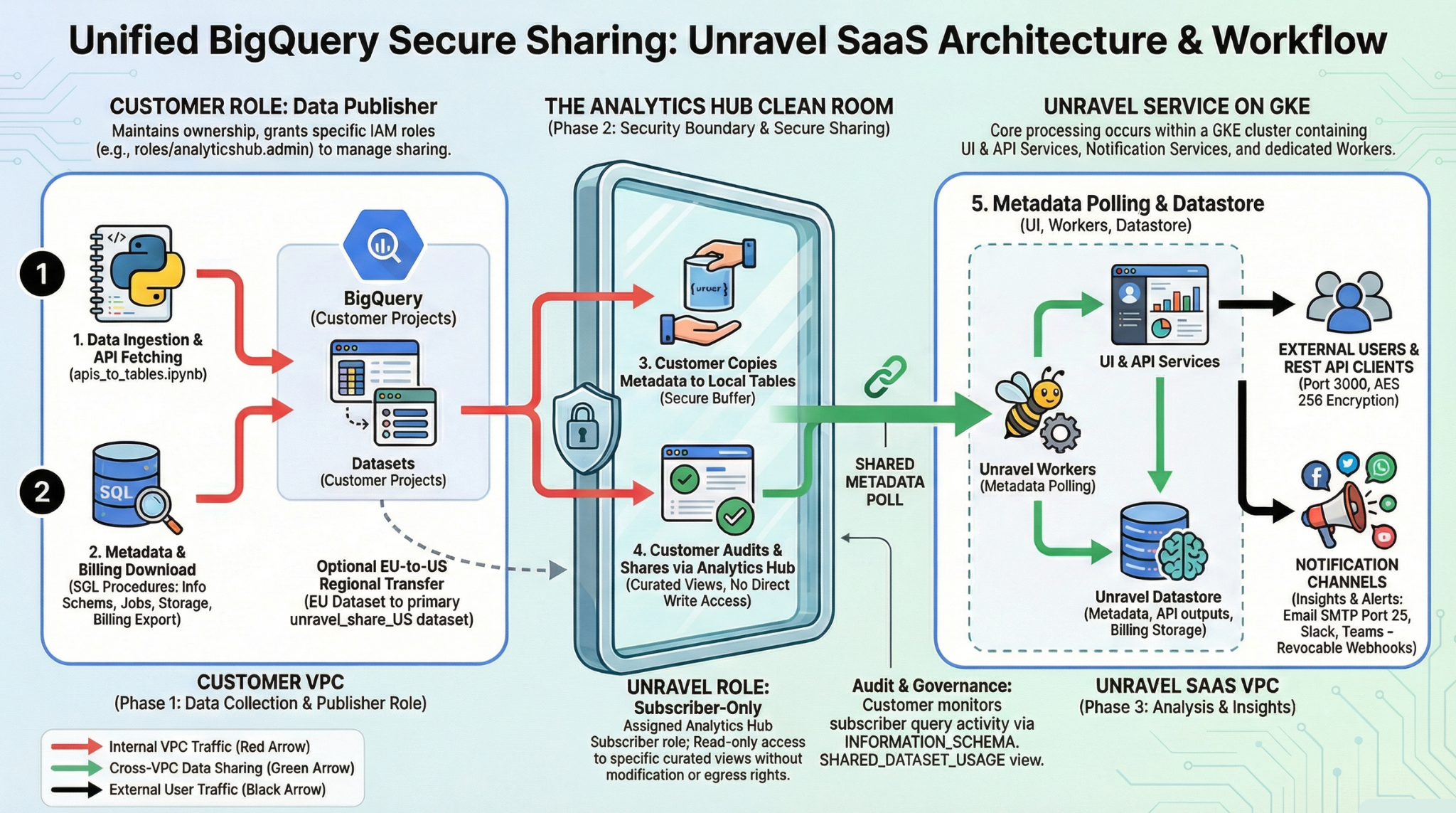
The BigQuery health check process uses a secure SaaS architecture to bridge your isolated Google Cloud environment with Unravel. Rather than granting Unravel direct IAM access to your production infrastructure, this architecture uses local BigQuery datasets and a Google Cloud Analytics Hub clean room to share health check data in a controlled, read-only way.
The secure sharing workflow consists of three main phases:
Data preparation and consolidation: As the data owner, you run Unravel-provided scripts to copy your BigQuery metadata, usage, and billing information into local datasets in your environment.
Note
If you monitor projects in both the EU and US regions, copy your EU dataset into your primary US dataset so that your shared data is consolidated in one place for easier publishing and management in Analytics Hub.
Secure sharing via Analytics Hub: Analytics Hub acts as the security boundary between your organization and Unravel. Instead of sharing raw tables, you create a clean room and publish specific, curated views of your local datasets. You assign Unravel the Analytics Hub subscriber role. This enforces read-only access so that Unravel cannot modify your datasets or egress unauthorized data. BigQuery enforces access controls and logging, so you can retain full governance and audit subscriber activity.
Read-Only Metadata Polling: Once the clean room is configured, Unravel securely polls the shared BigQuery metadata to perform its analysis. Because Unravel is only a subscriber, your metadata is not permanently stored or duplicated in Unravel’s BigQuery environment; it is queried from your storage through the Analytics Hub clean room.
Roles and Permissions
BigQuery Permissions/roles required to retrieve BigQuery metadata.
Before you begin, ask your admin to grant you the following predefined IAM roles on your Google Cloud projects.
Role
The role grants these permissions
Views and APIs you can query
roles/bigquery.resourceViewer
bigquery.jobs.listAll
bigquery.jobs.get
bigquery.reservations.list
bigquery.reservationAssignments.list
INFORMATION_SCHEMA.JOBS
INFORMATION_SCHEMA.JOBS_TIMELINE
INFORMATION_SCHEMA.RESERVATIONS
INFORMATION_SCHEMA.ASSIGNMENTS
roles/bigquery.metadataViewer
bigquery.tables.get
bigquery.tables.list
bigquery.routines.get
bigquery.routines.list
INFORMATION_SCHEMA.COLUMNS
INFORMATION_SCHEMA.TABLE_STORAGE
INFORMATION_SCHEMA.TABLES
INFORMATION_SCHEMA.TABLE_OPTIONS
roles/bigquery.dataViewer
bigquery.datasets.get
bigquery.tables.getdata
INFORMATION_SCHEMA.SCHEMATA_OPTIONSBilling Export Table [Detailed usage cost] (gcp_billing_export_resource_v1_<BILLING_ACCOUNT_ID>)
roles/bigquery.resourceViewer
resourcemanager.projects.get
Method: projects.get
Method: projects.getAncestry
roles/bigquery.user
bigquery.transfers.get
Method: transferConfigs.list
Role required for users who set up data sharing by using Analytics Hub: roles/analyticshub.admin. This role lets the user publish and manage shared data for Unravel in Analytics Hub.
Summary of the steps
To complete the snapshot secure share with Unravel, follow these steps:
Throughout this process, you share only a read-only snapshot of BigQuery metadata and billing data, and you do not grant Unravel write access to your datasets or infrastructure.
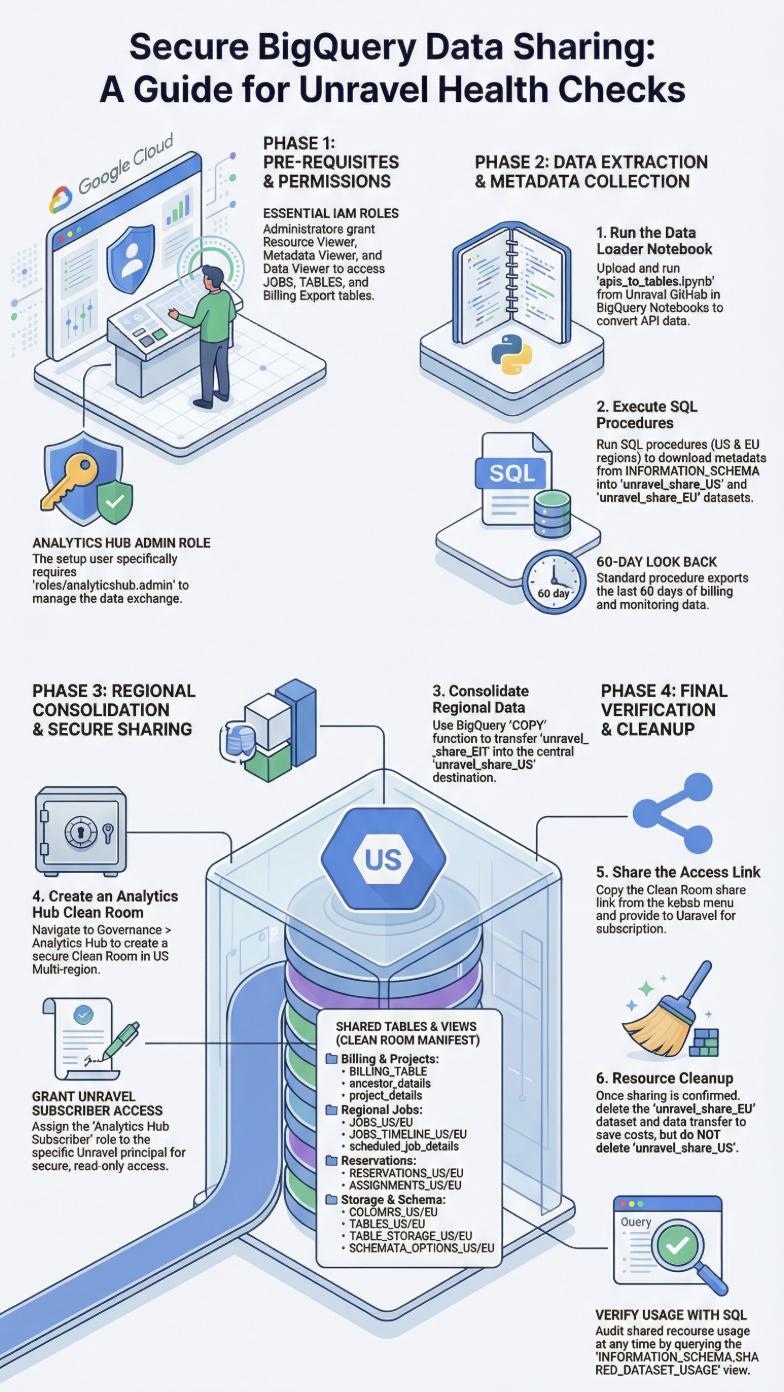
Run the Python notebook to fetch data from APIs and convert that data to BigQuery tables.
Run procedures to download metadata from the information schema in the US and EU regions.
Copy the dataset from the EU region to the US region. This consolidates your shared data in one place for easier publishing and management in Analytics Hub.
Share the dataset in the US region by using Analytics Hub and a clean room.
Clean up the resources while keeping only the read-only snapshot that Unravel uses.
Step 1: Run the Python notebook
Run the Python notebook to fetch data from APIs and convert the data into tables. Upload the apis_to_tables.ipynb notebook to BigQuery Notebooks in the project where you will be sharing the data:
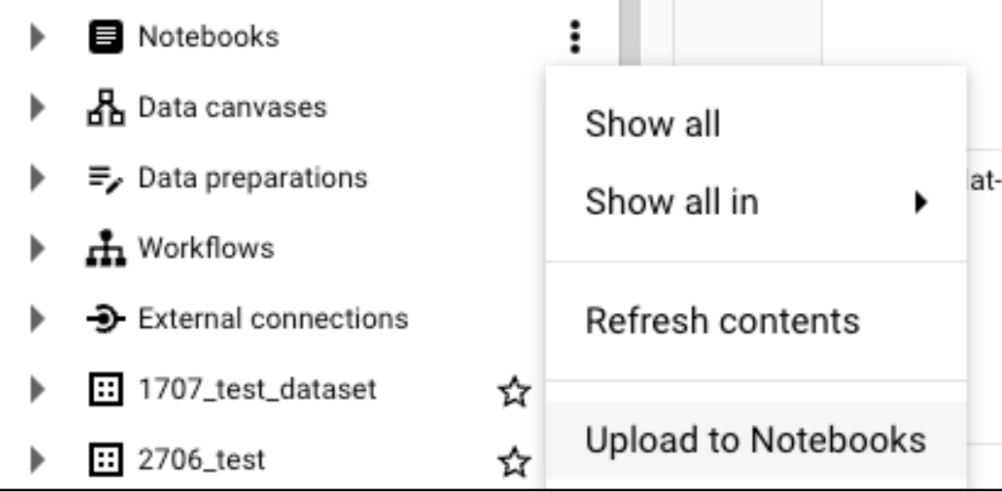
In the BigQuery console, under Notebooks, go to Notebook.
Open the More options menu (kebab icon), and then select Upload to Notebooks.
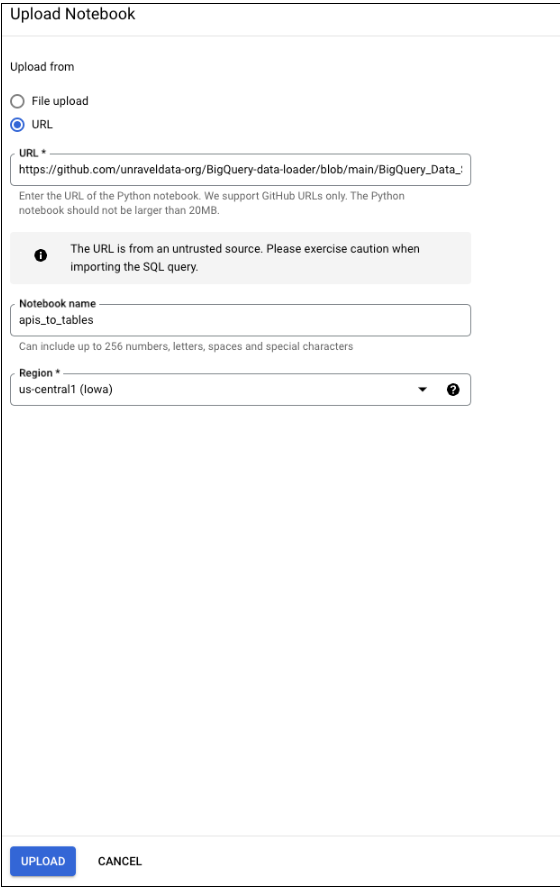
Select URL, and then enter this address:
Select Upload.
Provide inputs
After you upload the notebook, run it and provide these inputs in this order:
project: The project ID where the notebook runs.
dataset: unravel_share_US.
monitored_projects: A comma-separated list of project IDs that you want to include in the health check. Unravel monitors these projects.
The notebook creates the initial BigQuery health check tables that you later share as a snapshot through Analytics Hub.
Step 2: Run procedures to download metadata
Execute procedures to download metadata from the information schema in the US and EU regions. If you have only one region, download only that region.
Download the SQL procedure files:
In the BigQuery console, run procedure files for the required region.
Before you run the procedure calls, replace these placeholders:
<billing-project>, <billing-dataset>, and <billing-table-name> with the project ID, dataset ID, and table name where the detailed Cloud Billing export data is stored.
['<project-1>', '<project-2>'] with the comma-separated list of project IDs that you want to include in the health check.
['<reservation-project-1>', '<reservation-project-2>'] with the comma-separated list of admin project IDs where reservations are created.
Run the following procedure calls:
Create a copy of billing data:
CALL unravel_share_US.export_billing_data(
  'unravel_share_US',
  60,
  '<billing-project>',
  '<billing-dataset>',
  '<billing-table-name>'
);
Create a copy of the monitoring data from the US location:
CALL unravel_share_US.export_metadata_US(
  'unravel_share_US',
  60,
  ['JOBS', 'JOBS_TIMELINE', 'COLUMNS', 'TABLES', 'TABLE_STORAGE', 'TABLE_OPTIONS', 'SCHEMATA_OPTIONS'],
  'US',
  ['<project-1>', '<project-2>']
);
Create a copy of the reservation monitoring data from the US location:
CALL unravel_share_US.export_metadata_US(
  'unravel_share_US',
  60,
  ['RESERVATIONS', 'ASSIGNMENTS'],
  'US',
  ['<reservation-project-1>', '<reservation-project-2>']
);
Create a copy of the monitoring data from the EU location:
CALL unravel_share_EU.export_metadata_EU(
  'unravel_share_EU',
  60,
  ['JOBS', 'JOBS_TIMELINE', 'COLUMNS', 'TABLES', 'TABLE_STORAGE', 'TABLE_OPTIONS', 'SCHEMATA_OPTIONS'],
  'EU',
  ['<project-1>', '<project-2>']
);
Create a copy of the reservation monitoring data from the EU location:
CALL unravel_share_EU.export_metadata_EU(
  'unravel_share_EU',
  60,
  ['RESERVATIONS', 'ASSIGNMENTS'],
  'EU',
  ['<reservation-project-1>', '<reservation-project-2>']
);
Step 3: Copy the dataset from EU to US
Copy the dataset that you created in the EU region to the US region.
Note
If you monitor projects in both the EU and US regions, copy your EU dataset into your primary US dataset so that your shared data is consolidated in one place for easier publishing and management in Analytics Hub.
In the BigQuery console, select the unravel_share_EU dataset.

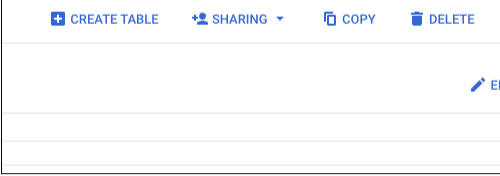
In the upper-right corner of the console, select Copy.
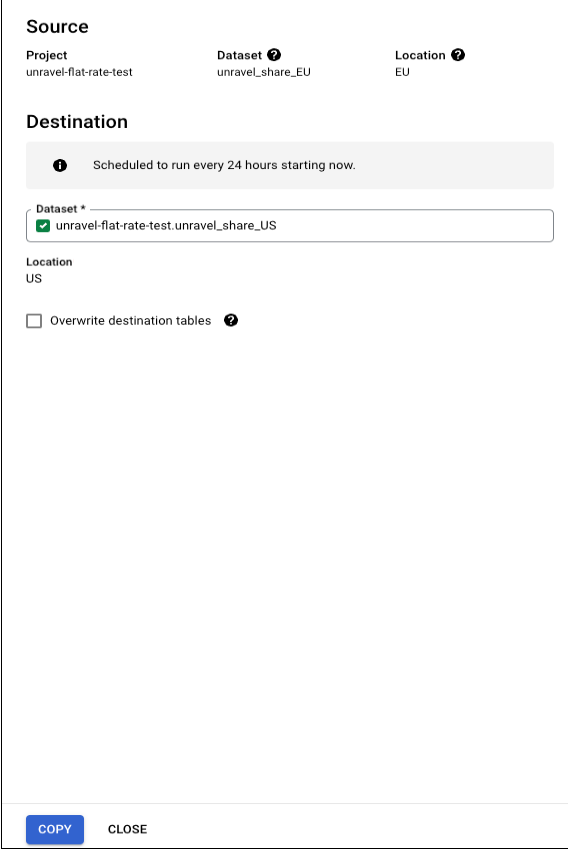
In the side panel, for the Destination dataset, select unravel_share_US, and then select Copy.
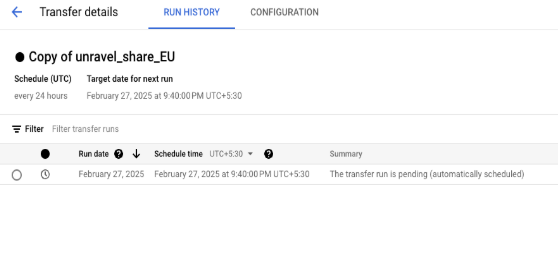
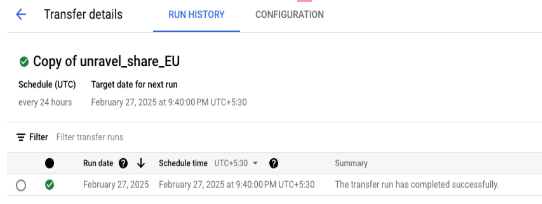
Wait until the data transfer between the datasets is complete, and then go to the next step.
Step 4: Share the dataset by using Analytics Hub
Share the dataset in the US region by using a clean room in Analytics Hub.
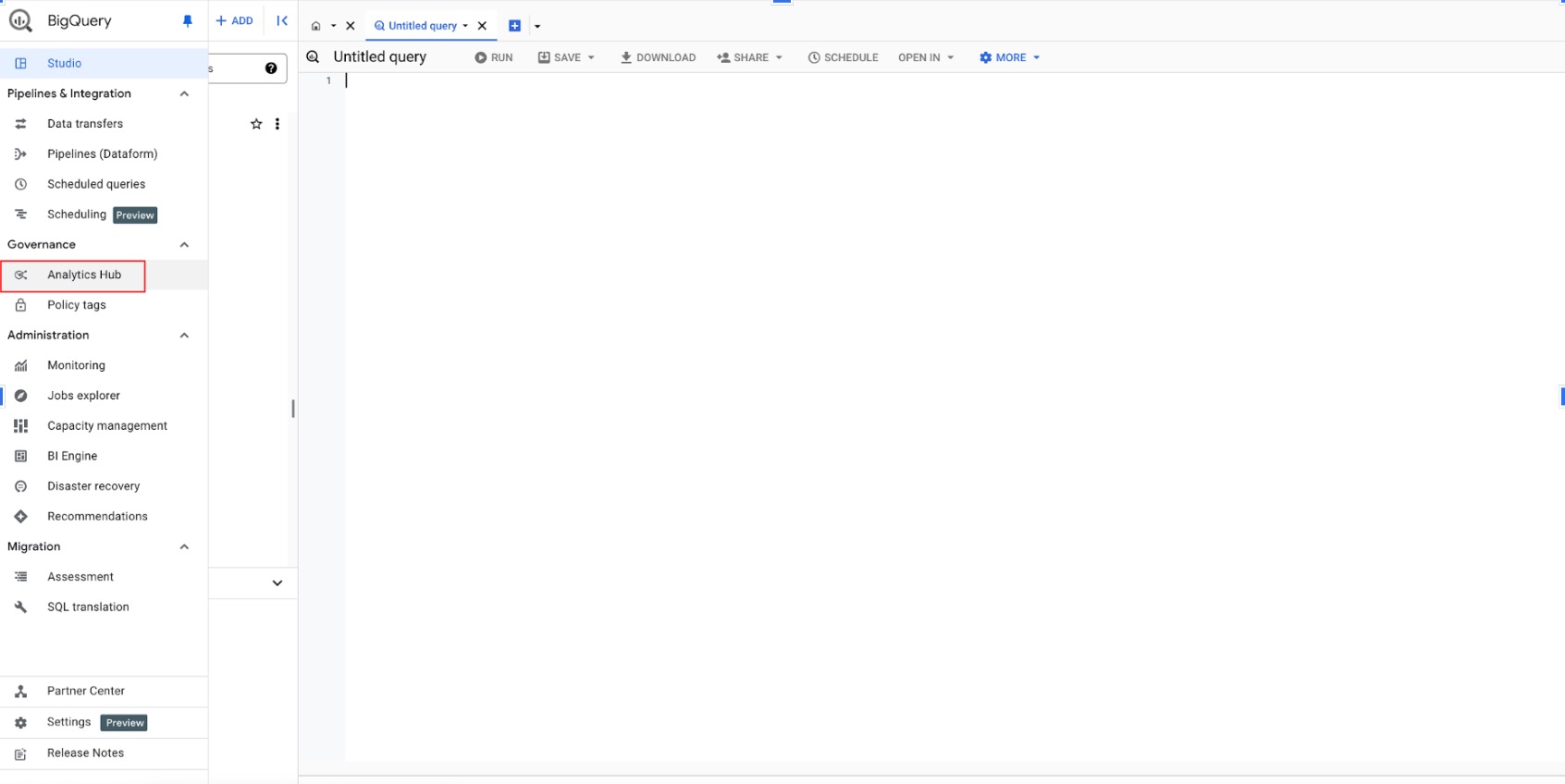
In BigQuery, under the Governance tab, go to Analytics Hub.
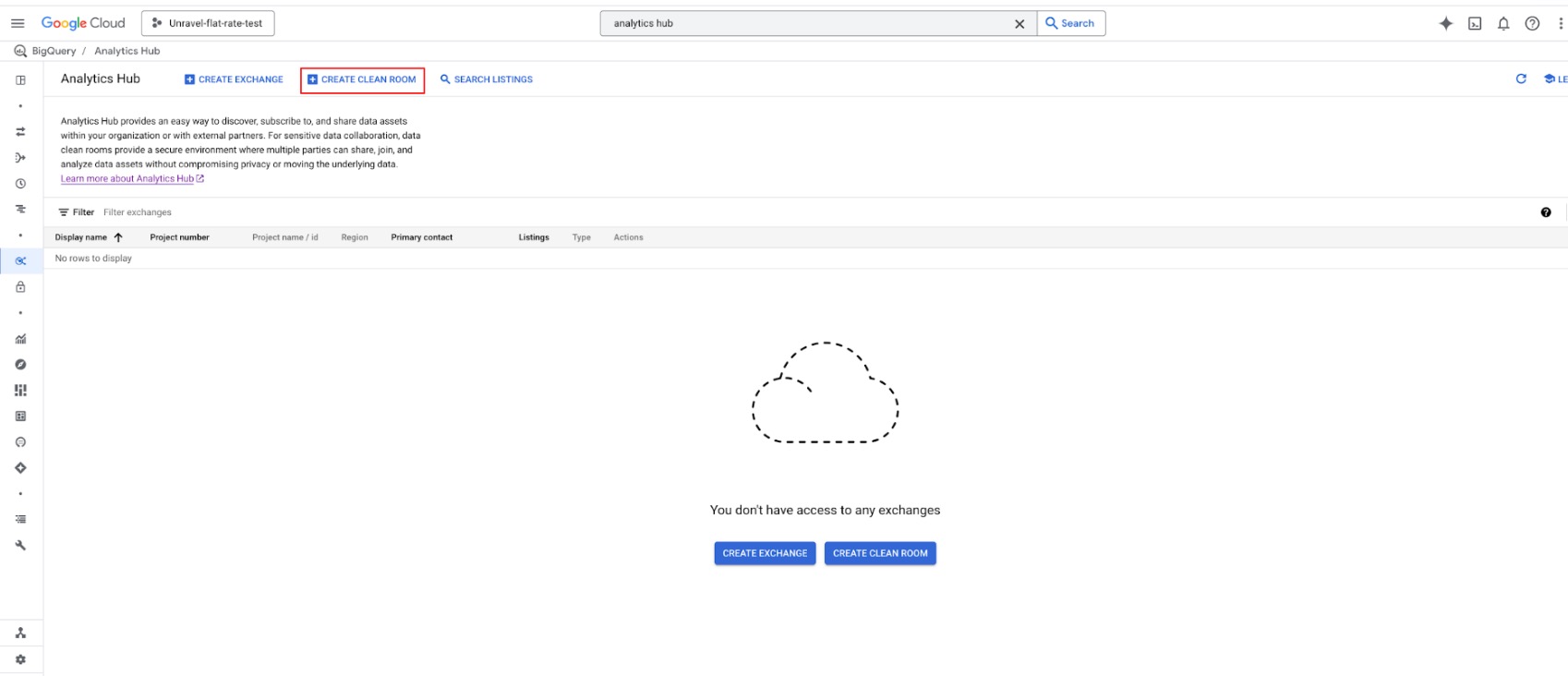
Select Create clean room to share data securely.
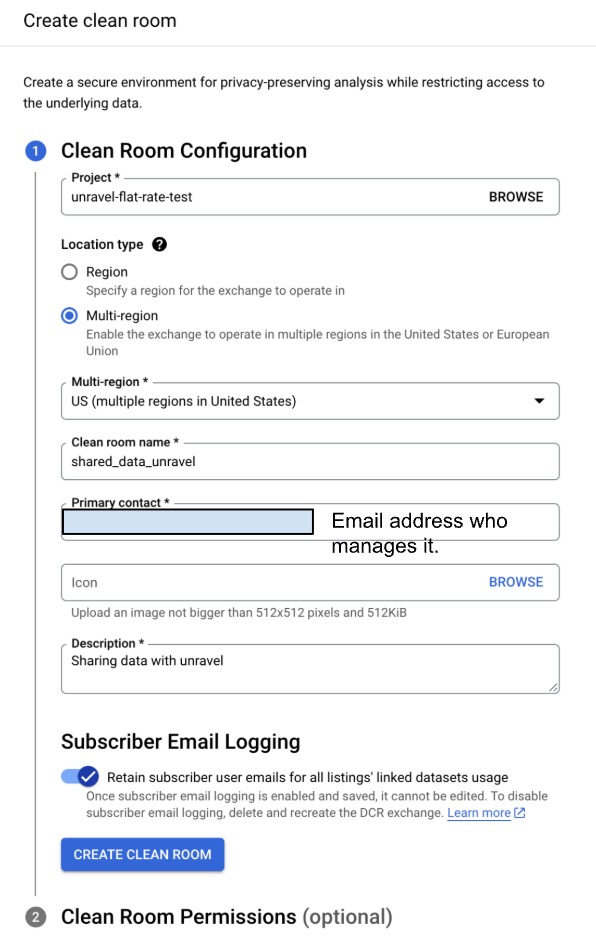
Configure the clean room:
For Project, select the project where the unravel_share_US dataset is created.
For Location, select Multi-region > United States.
For Primary contact, enter the email address of the person or team that manages the clean room.
(Optional) For Icon, upload an image to use as the icon.
For Description, enter a brief description.
(Optional) Turn on subscriber email logging to monitor clean room usage.
Select Create clean room, and then skip the clean room permissions section.
Grant permissions
Open the clean room that you created.
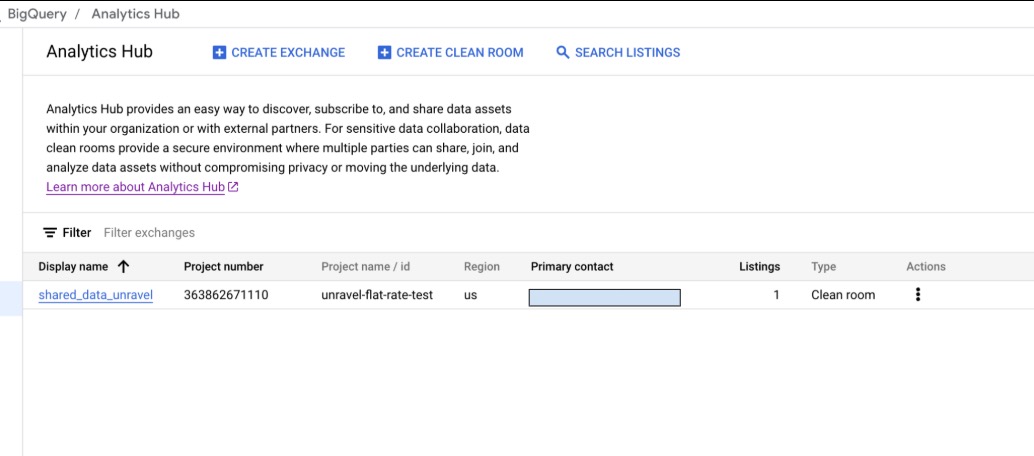
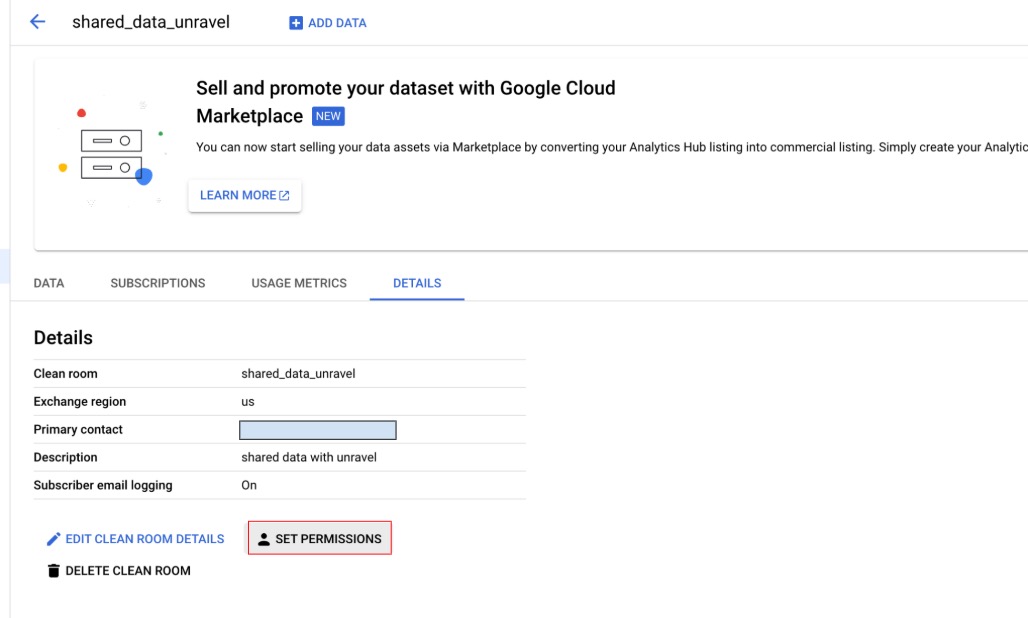
On the Details tab, select Set permissions.
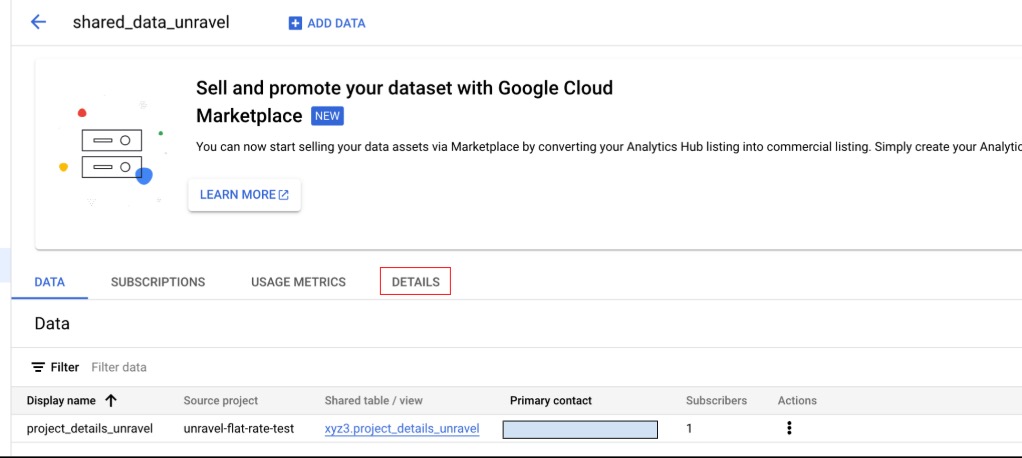
Select Set permissions > Add principal to give Unravel access.
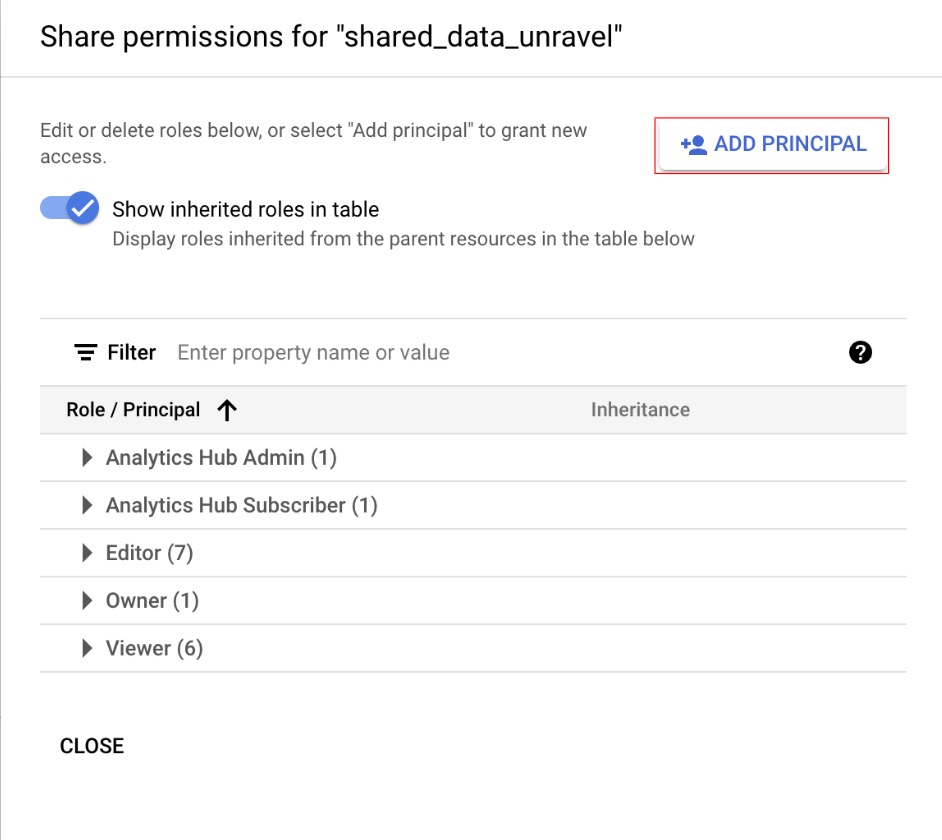
For New principals, enter the user names or email addresses of the data contributors that you are adding. This list can include publishers, who manage shared data, and subscribers, who access shared data. The principal will be provided by Unravel.
Assign roles (for more information, see the documentation about Analytics Hub roles):
Analytics Hub Admin (publisher): Grants permission to create, update, or delete the clean room and manage its data. Use this role for the internal team.
Analytics Hub Listing Admin (publisher): Grants permission to view and delete the clean room. Use this role for the internal team.
Analytics Hub Publisher (publisher): Grants permission to add data to the clean room. Use this role for the internal team.
Analytics Hub Subscriber (subscriber): Required by Unravel to access the data in read-only mode.
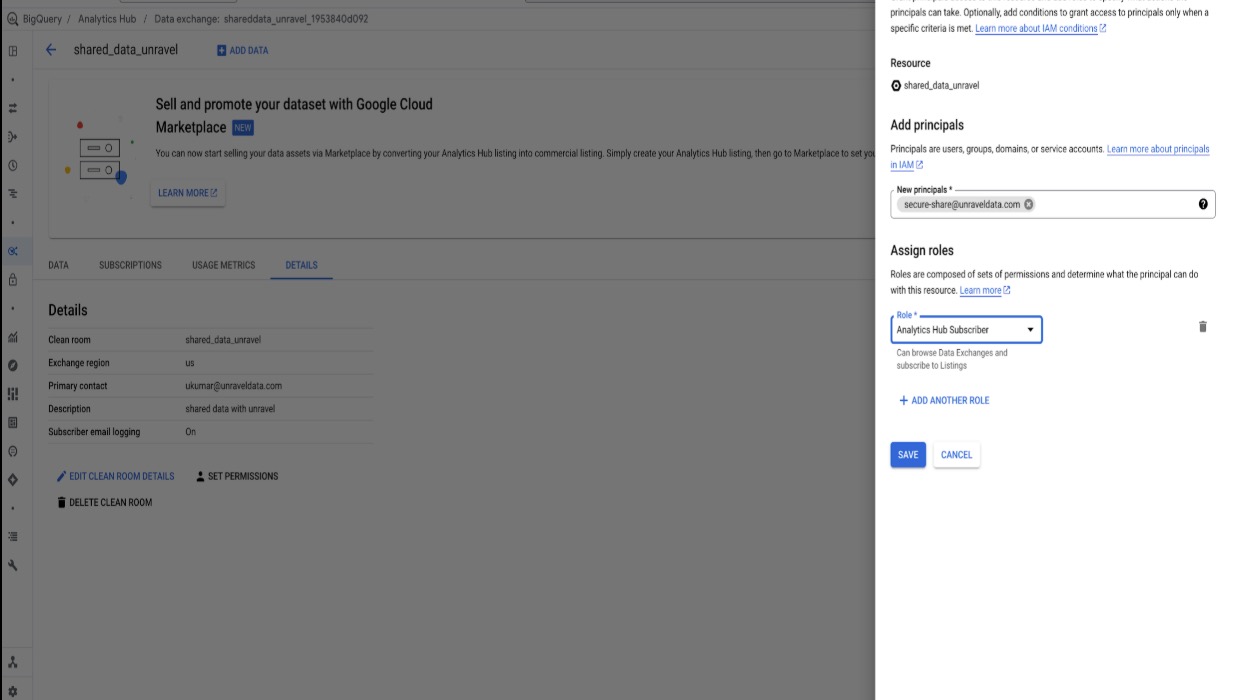
When you assign these roles, do not give Unravel any role that lets them modify datasets, clean room configuration, or egress settings. Unravel should be a subscriber-only.
Add data to the clean room:
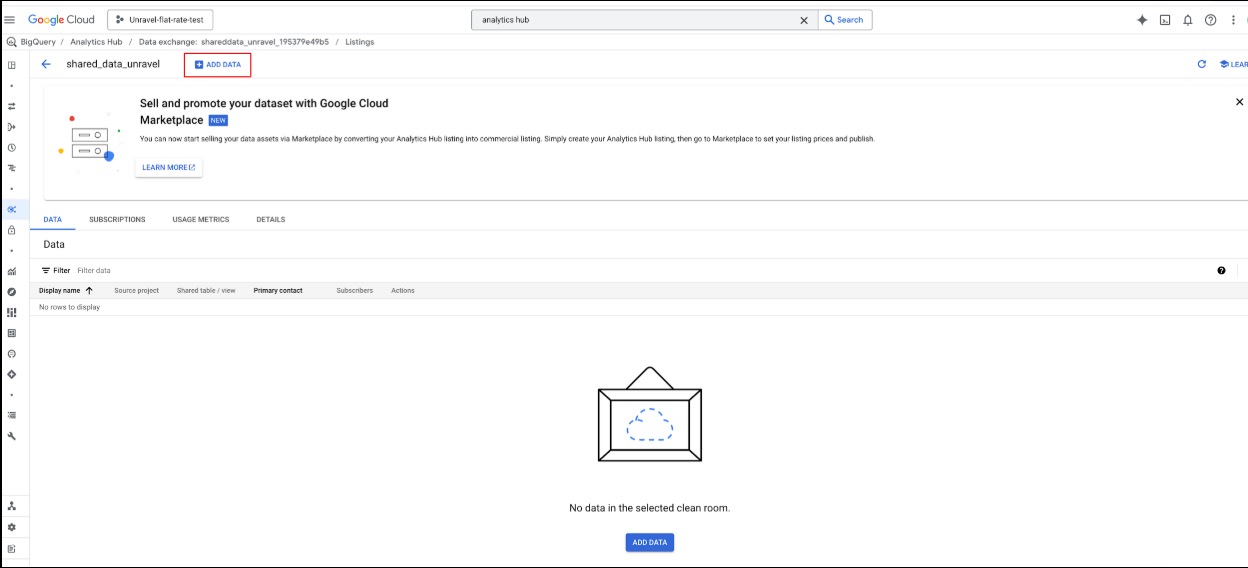
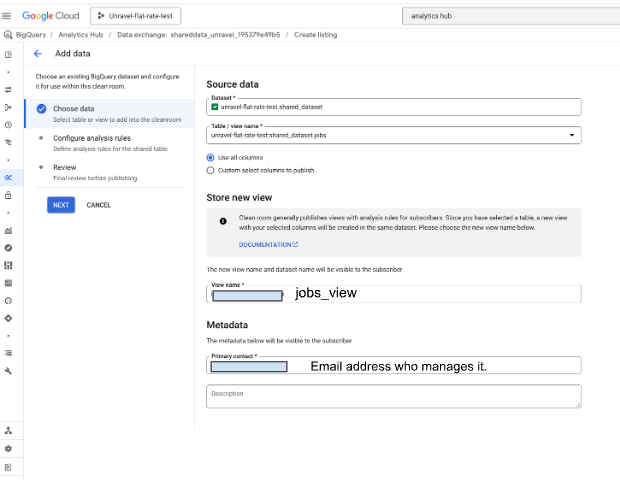
For each table that you want to share (see the table list in this step), after you review the data, follow these steps:
In the dataset field, select the unravel_share_US dataset.
Select the table name that you want to share.
Select Use all columns.
Enter a view name that Unravel sees. Use the pattern <table_name>_view.
Enter the primary contact email address.
Select Next, select Next again, and then select Add data.
Tables to share:
BILLING_TABLE
JOBS_US, JOBS_EU
JOBS_TIMELINE_US, JOBS_TIMELINE_EU
RESERVATIONS_US, RESERVATIONS_EU
ASSIGNMENTS_US, ASSIGNMENTS_EU
COLUMNS_US, COLUMNS_EU
SCHEMATA_OPTIONS_US, SCHEMATA_OPTIONS_EU
TABLES_US, TABLES_EU
TABLE_OPTIONS_US, TABLE_OPTIONS_EU
TABLE_STORAGE_US, TABLE_STORAGE_EU
ancestor_details
project_details
scheduled_job_details
These shared tables and views form the complete BigQuery health-check snapshot that Unravel can query in the clean room, subject to the egress policies you configure.
Share the link and verify the subscription:
On the Clean rooms page, for the clean room that you created, open the More options menu, and then copy the share link.
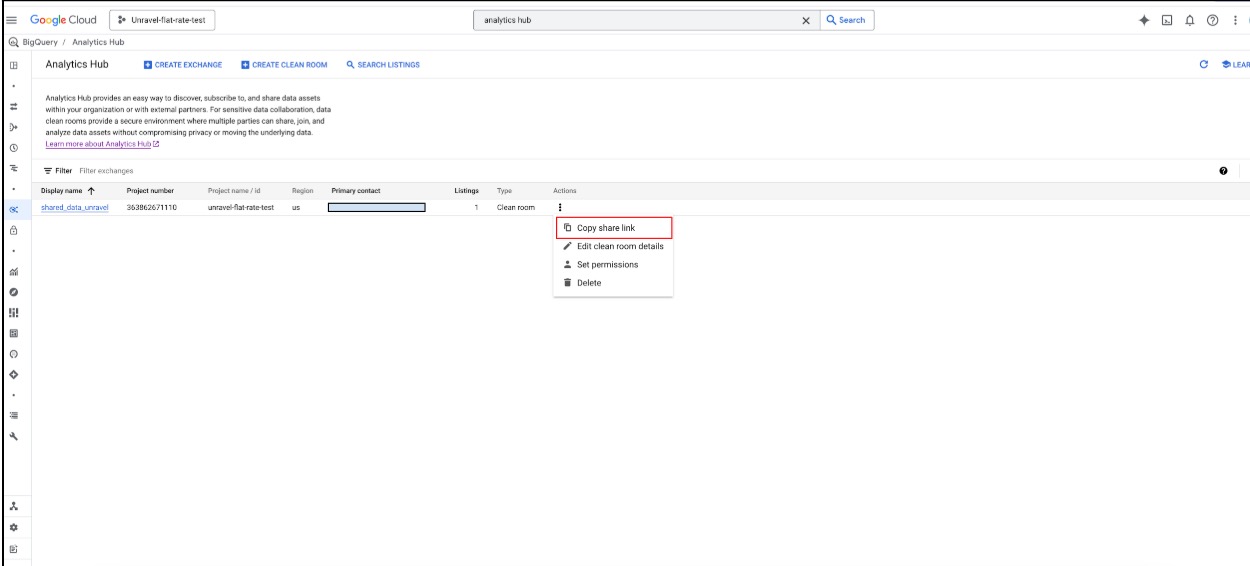
Share the copied link with Unravel.
After Unravel subscribes to the data, open the clean room, go to the Subscriptions tab, and confirm that the subscriber appears in the list.
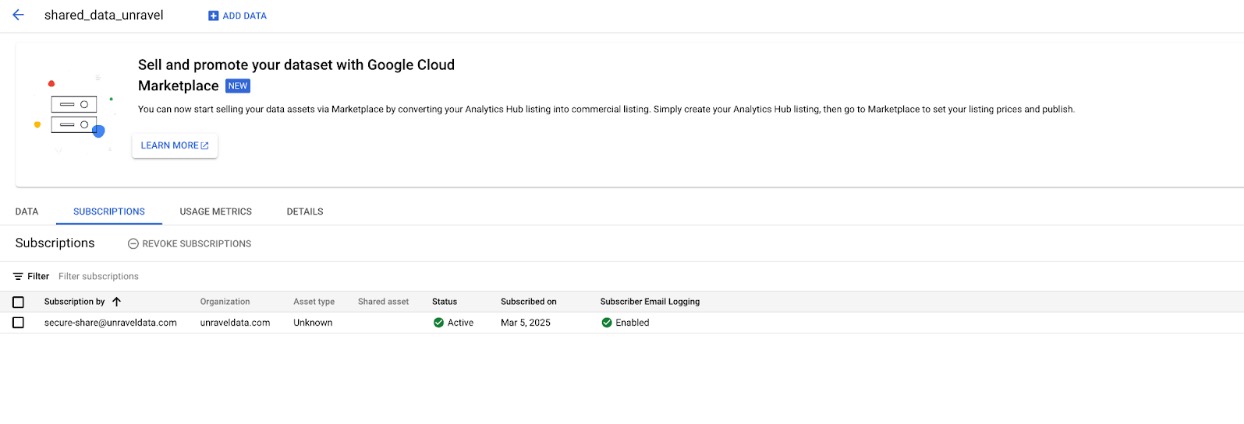
Select the specific clean room.
Go to the Subscriptions tab. The list of subscribers appears.
Review shared dataset usage.
To review shared dataset usage, run this query:
SELECT * FROM `region-us`.INFORMATION_SCHEMA.SHARED_DATASET_USAGE;
Use this view to monitor query activity from subscribers, detect unusual access patterns, and determine whether to adjust permissions, rotate shared views, or revoke access.
Step 5: Clean up resources
After you share data with Unravel, delete the following resources:
Note
Do not delete the unravel_share_US dataset.
The unravel_share_EU dataset
The data transfer that you created to copy the unravel_share_EU dataset to unravel_share_US
Delete the EU dataset
To delete the unravel_share_EU dataset and its contents, run this statement:
DROP SCHEMA unravel_share_EU CASCADE;
Delete or disable the data transfer
As a final step, if you no longer need to share this snapshot with Unravel, remove their subscription in Analytics Hub or delete the clean room so that future access to the shared data is revoked.
In the Google Cloud console, in the BigQuery section, go to Data transfers.
Find the Copy of the unravel_share_EU transfer that you used to move data from the EU location to the US location.
Open the More options menu (kebab icon), and then select Delete or Disable. You can safely delete the transfer.
More about Analytics Hub
Analytics Hub is a data exchange platform that lets you share data and insights at scale across organizational boundaries by using a security and privacy framework. With Analytics Hub, you can discover and access a curated library of data from many providers, and you can share BigQuery datasets through data clean rooms that enforce strong controls on what subscribers can query and export. Analytics Hub supports secure sharing of sensitive data across organizations while giving data owners granular control over what they share and who can access it.
Analytics Hub helps organizations reduce data silos, improve collaboration, and maintain control over data access, query behavior, and data egress when they adopt a SaaS-based snapshot sharing model like the one in this guide.